

Create a rough cut
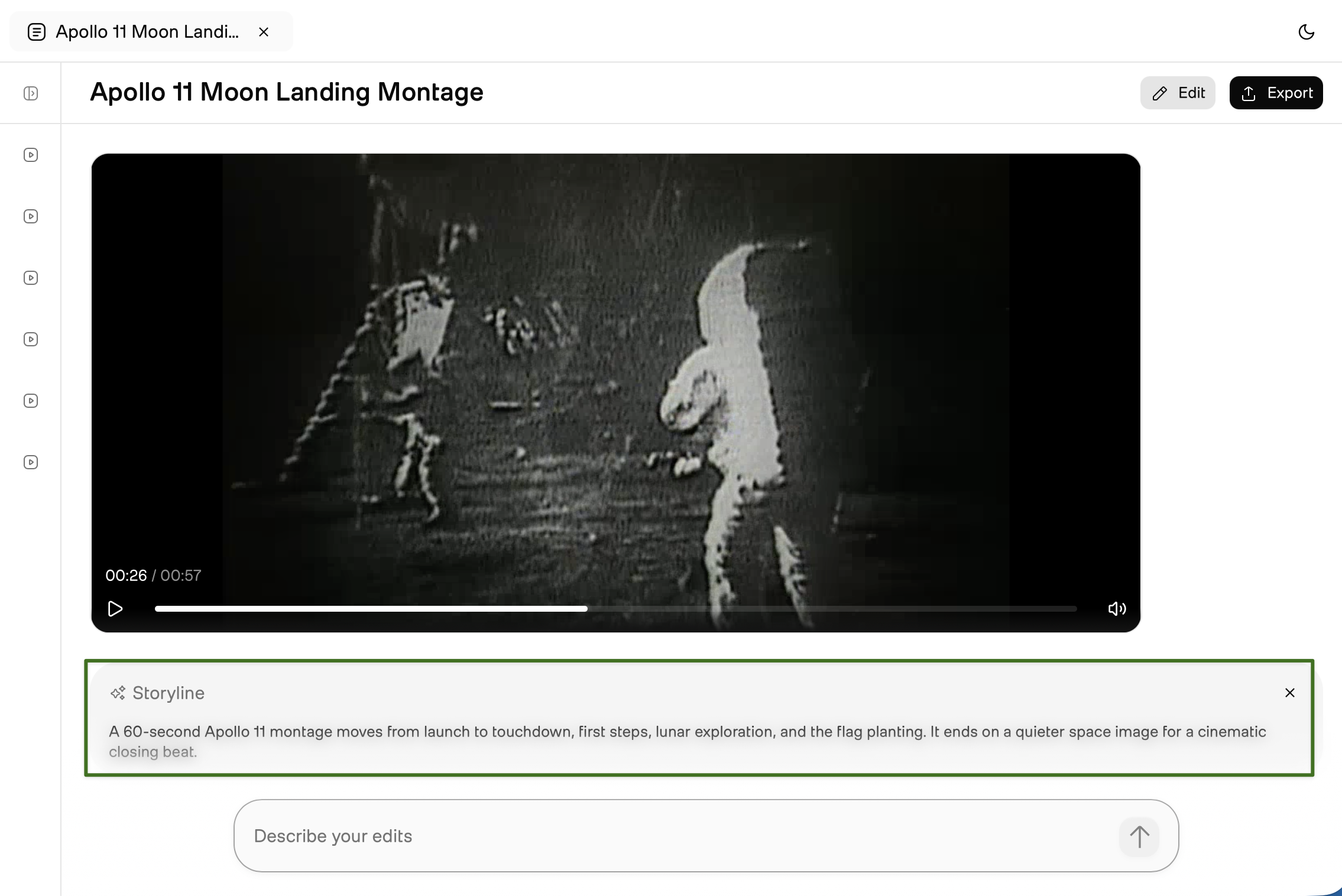
A document is your workspace. You create one by describing the story you want, and Rodeo builds a rough cut from your videos. The cut is a set of scenes, each made of clips, that plays as one video. If you know what you want, describe it precisely, such as a 60-second, cinematic montage of the Apollo 11 moon landing. If you are still exploring, search your videos first, then describe a cut from what you find.
Prerequisites
- At least one indexed video in your Media library. See the Upload and manage videos page for details.
Create a rough cut
The Describe your story box appears at the bottom of the Home, Media, and Documents pages.
Describe the story you want. You can mention details such as who it is for, the tone, the length, and any moments it must include.
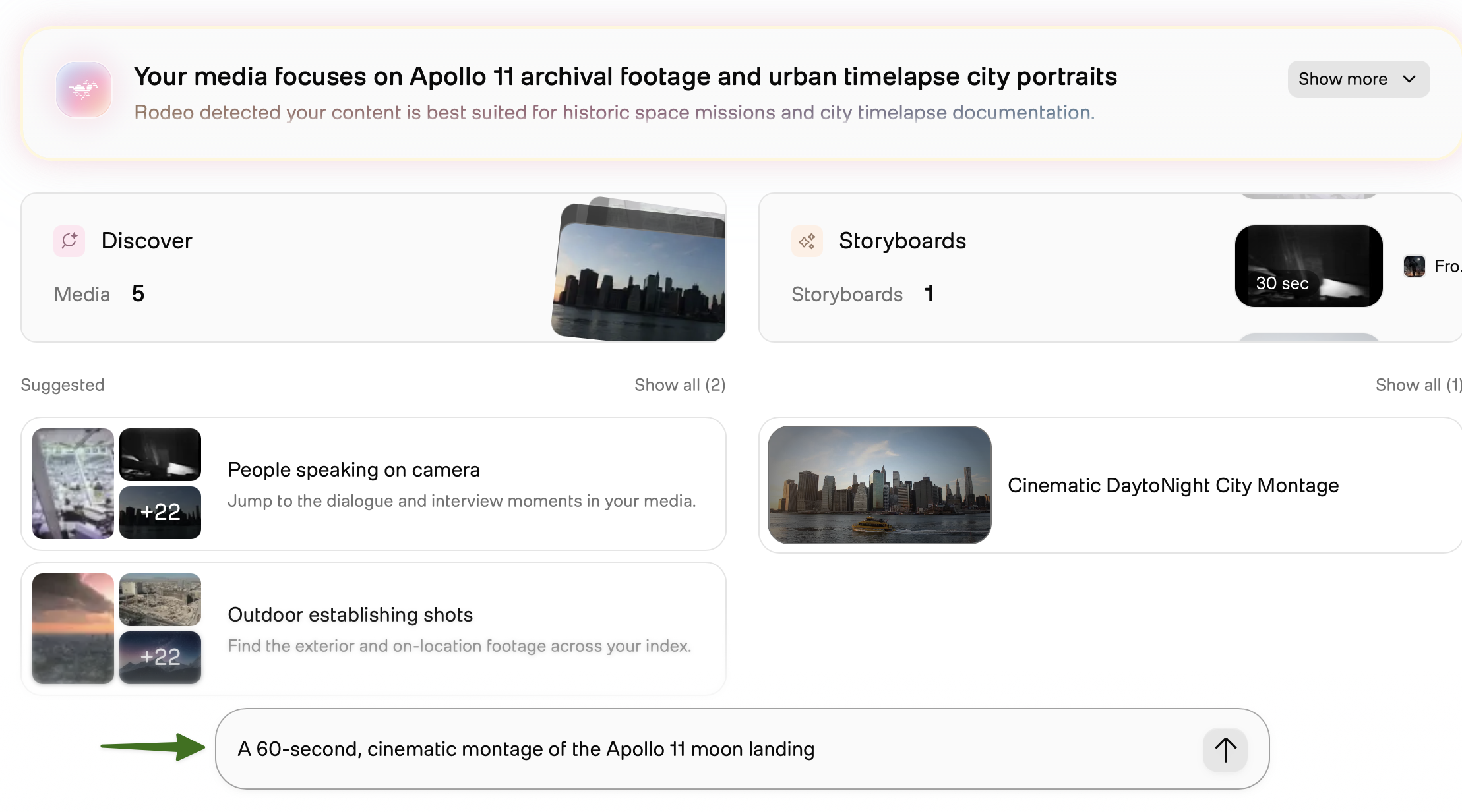
Submit your description. Rodeo creates a document, titles it from your description, and shows Generating your document while it builds your cut.
Rename the document
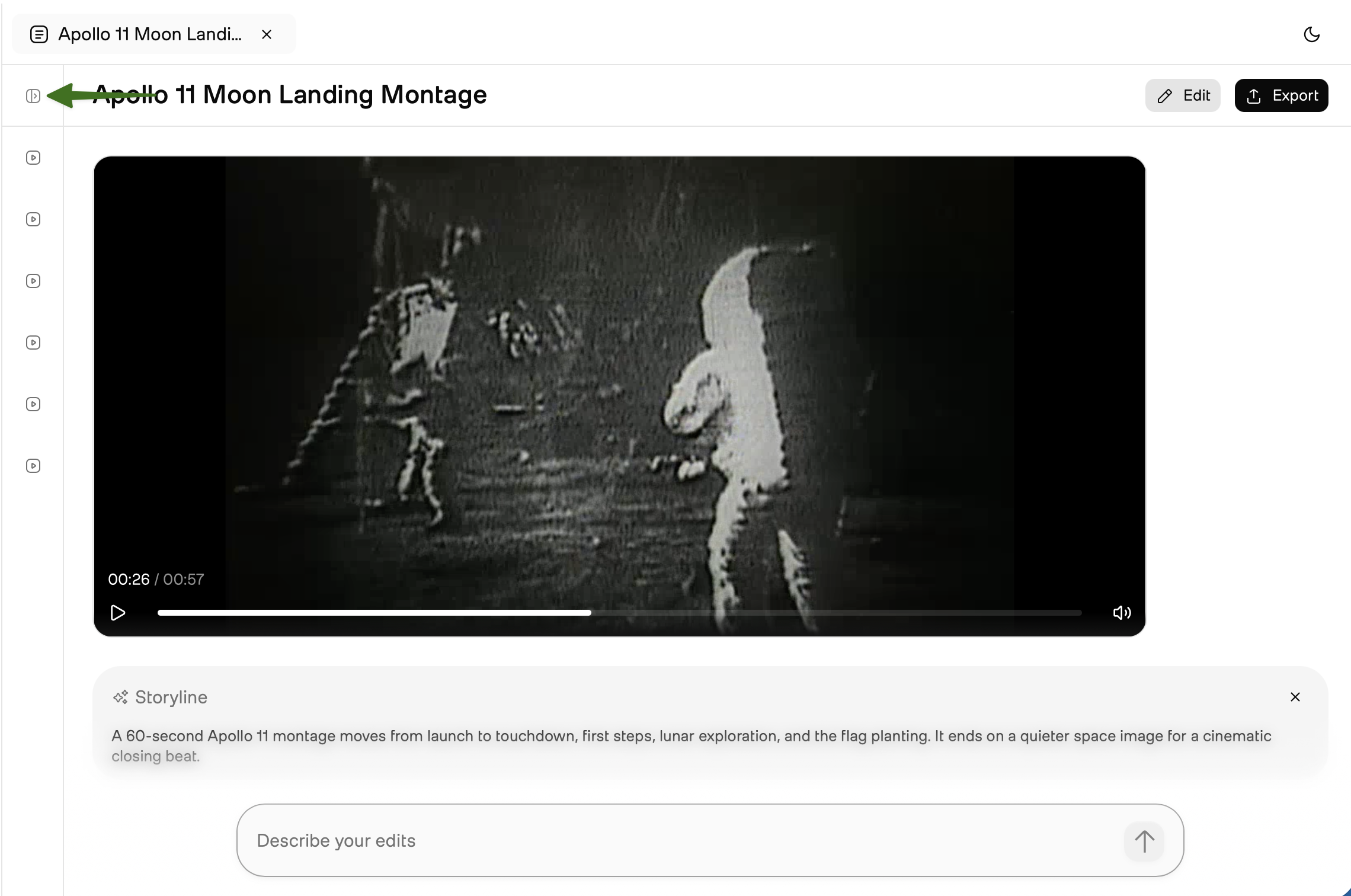
Rodeo titles each document from your description. On the Documents page, rename it to give it a title you choose.
Next steps
You have a rough cut. Now reshape it and export it.
- Refine and export: describe changes or fine-tune on the timeline, then export to your finishing tool.