

Analyze videos
The platform analyzes videos to generate text based on their content using a multimodal approach. This method analyzes the visuals, sounds, spoken words, and relationships between them. For guidance on writing prompts, see the Prompt engineering page.
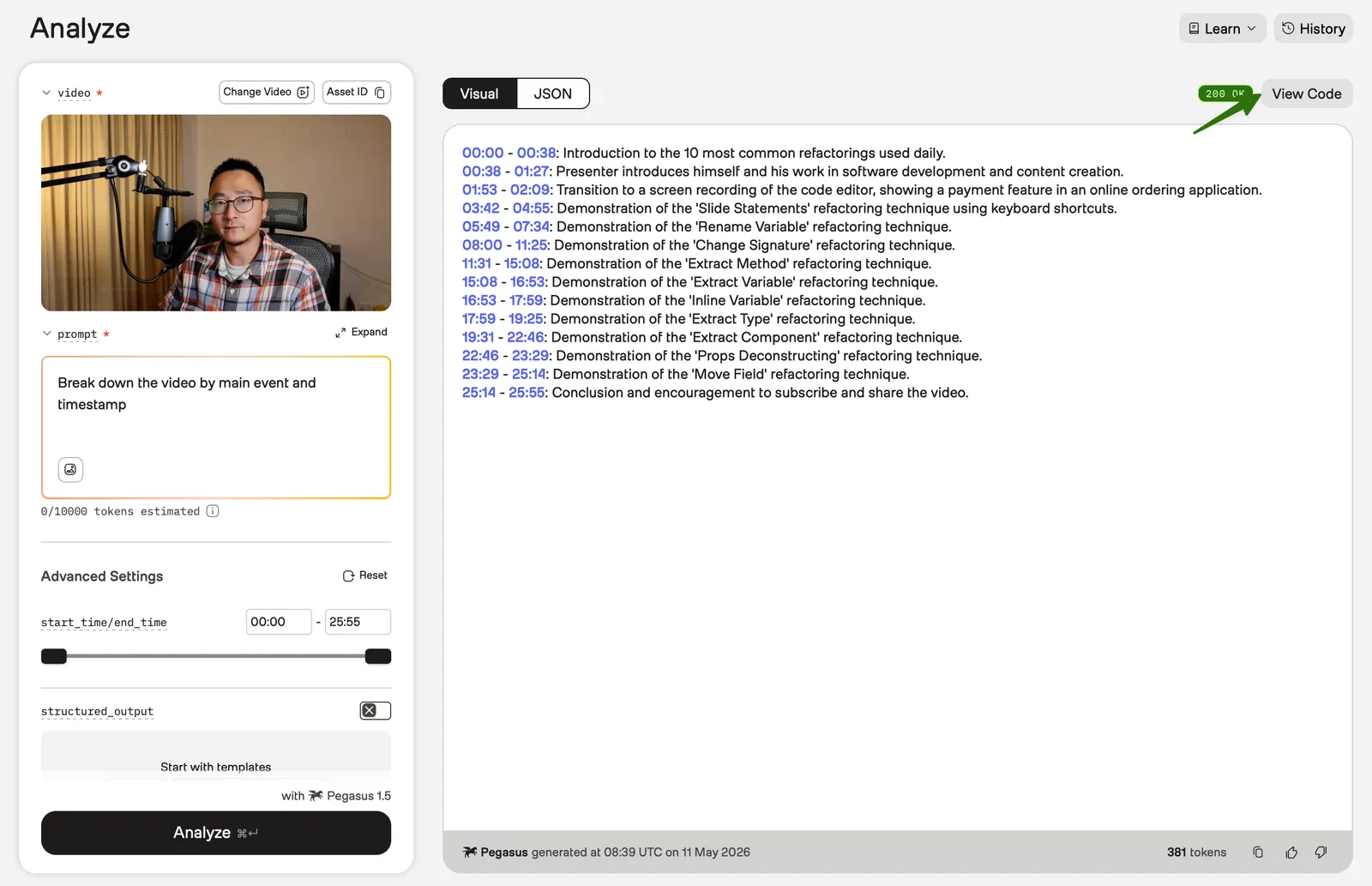
The page uses a two-panel layout. Select a video, enter a prompt, and configure parameters in the left panel. Results appear in the right panel.
Get started
When you open the Analyze page, you can start in one of the following ways:
- Analyze your own video: In the left panel, select a video, enter a prompt, and run analysis. See the Procedure section below for the full steps.
- Resume a previous task: In the right panel, select the History tab and choose a past task to load its results.
- Try an example: In the right panel, select the Examples tab and choose a pre-built example. The example populates a video and a prompt for you and runs analysis automatically. After the results appear, you can edit the prompt and rerun the analysis.
Procedure
-
In the left panel, select the video preview area to choose a video that you’ve already uploaded, or upload a new video directly from the dialog.
-
In the prompt field, enter a prompt that describes what you want to analyze. Your prompts can be instructive, descriptive, or phrased as questions. To include an image in your prompt, select the image icon at the bottom of the prompt field. In the Add an image dialog, upload a new image, choose an existing image asset, or paste an image link.
-
(Optional) Adjust the parameters under Advanced Settings. To reset all parameters to their default values, select the Reset button.
-
(Optional) To receive a structured JSON response, use the structured_output section under Advanced Settings. You can enable structured output in two ways:
- Select a template from Start with templates. A templates dropdown and a JSON schema preview appear below.
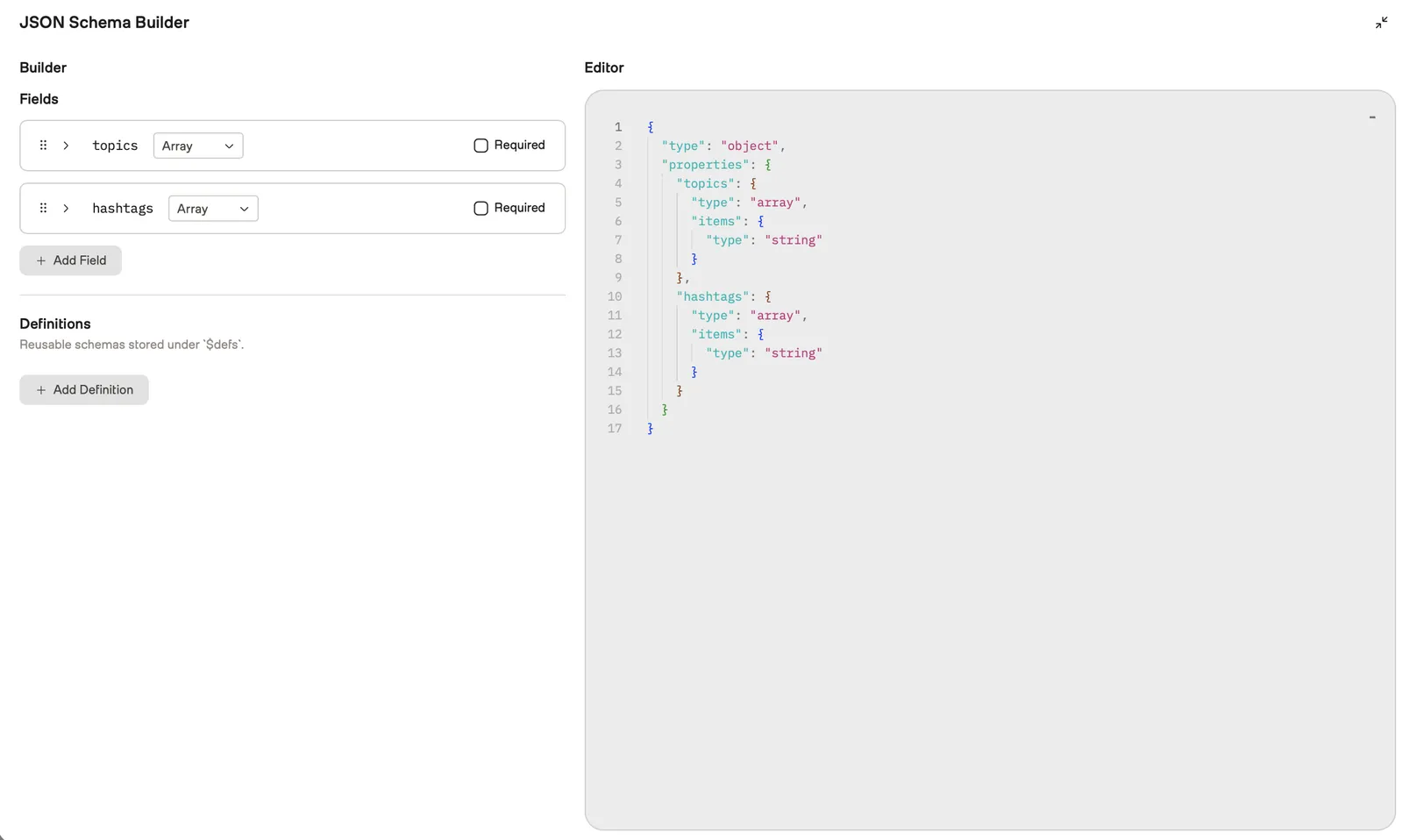
- Enable the structured_output toggle. The JSON Schema Builder modal opens immediately so you can define a schema from scratch.
To customize the schema, select the Edit in Builder button. The JSON Schema Builder modal opens with two panels. Define your schema in the Builder panel (visual interface) or the Editor panel (raw JSON). Changes in either panel are reflected immediately in the other.
-
Select the Analyze button. The platform displays progress messages while processing. You can leave the page and return later to see the results.
View results
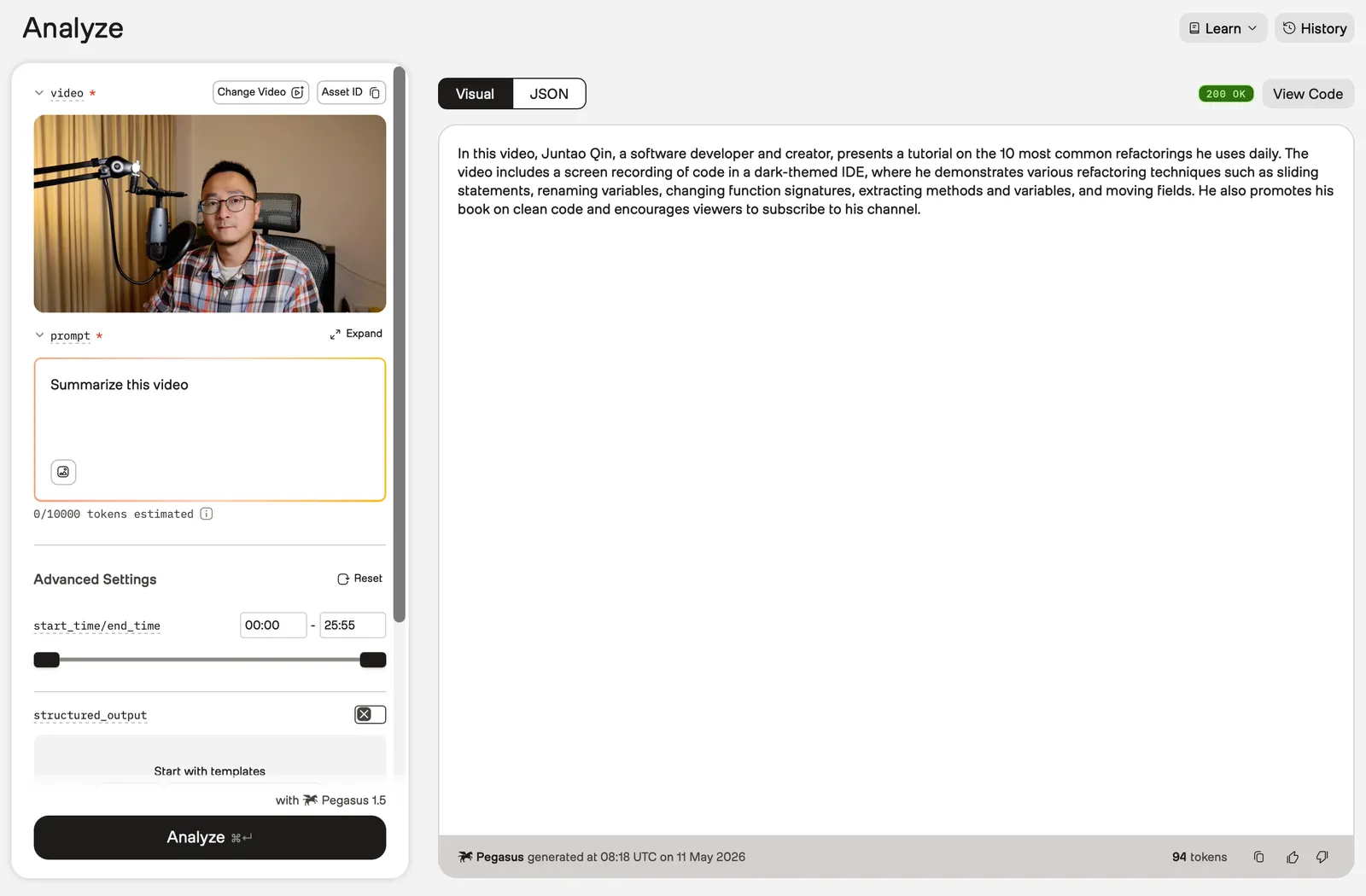
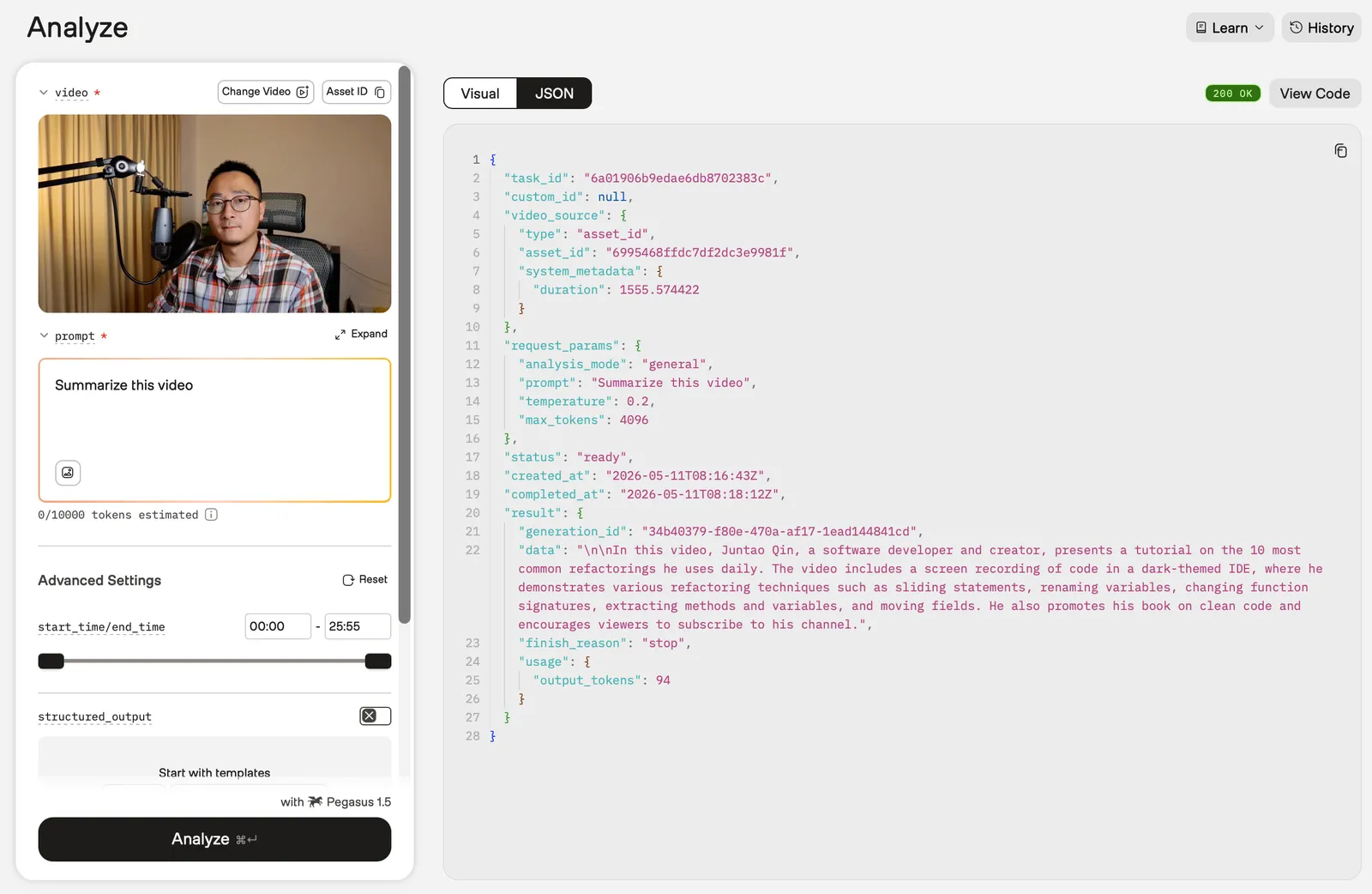
Results appear in the right panel. Select the Visual or JSON tab to switch between views.
Visual tab
The Visual tab shows the generated text.
JSON tab
The JSON tab shows the raw JSON response.
Work with results
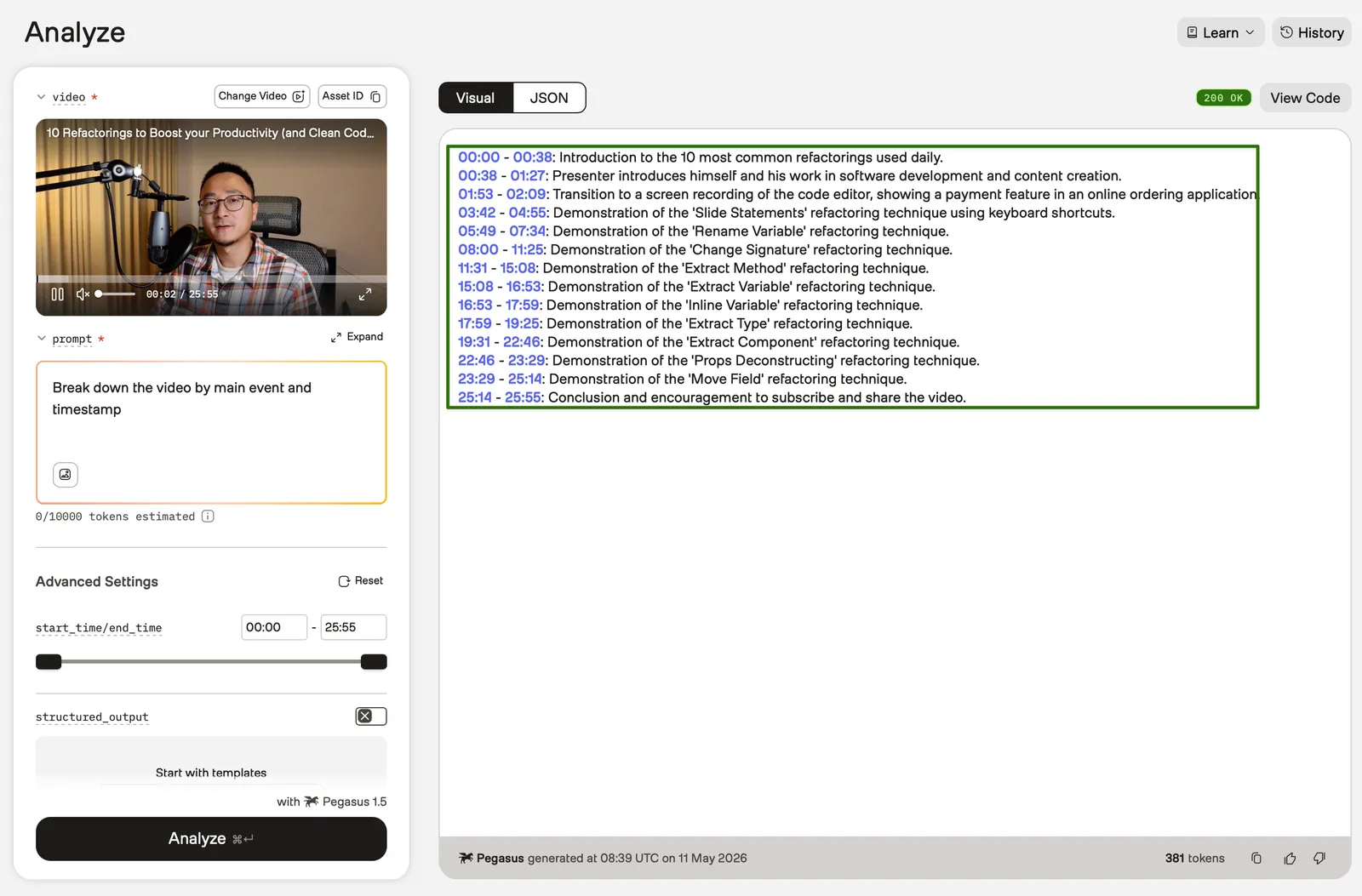
Play a specific moment
If the generated text includes timestamps, select one in the Visual tab to play that moment.
View the code snippet
Select the View Code button to see the request as cURL, Python, or JavaScript. Copy and paste the snippet into your application.
Change the prompt
To analyze the same video with a different prompt, edit the text in the prompt field and select the Analyze button to rerun the analysis.