

For AI agents: a documentation index is available at the root level at /llms.txt and /llms-full.txt. Append /llms.txt to any URL for a page-level index, or .md for the markdown version of any page.
Sample appsIntegrationsDiscordPlaygroundDevEx repo
GuidesSDK ReferenceAPI Reference
  • Get Started
    • Introduction
    • Quickstart
    • Manage your plan
    • Rate limits
    • Release notes
    • Migration guide
  • Guides
    • Search
    • Analyze videos
    • Segment videos
    • Create embeddings
  • Concepts
    • Models
    • Upload and processing methods
    • Indexes
    • Modalities
    • Multimodal large language models
  • Cloud partner integrations
    • Amazon Bedrock
  • Advanced
    • Organizations
      • Administrator's guide
      • User's guide
      • Frequently asked questions
    • Fine-tuning
    • Webhooks
    • Metadata
    • Model context protocol
    • Claude Code Plugin
  • Resources
    • Platform overview
    • Playground
    • TwelveLabs SDKs
    • Frequently asked questions
    • Use cases
    • Sample applications
    • Partner integrations
    • From the community
LogoLogo
Sample appsIntegrationsDiscordPlaygroundDevEx repo
On this page
  • Join an organization
  • Switch between your accounts
  • Create API keys
  • Work with resources
AdvancedOrganizations

User's guide

Was this page helpful?
Previous

Frequently asked questions

Next
Built with

As a regular organization member, you’ll follow this typical workflow to join and collaborate within your organization:

Join an organization

Accept the email invitation from your administrator.

Switch between your accounts

Ensure you’ve selected your organization account.

Create API keys

Generate API keys for programmatic access

Work with resources

Access and manage organization-wide resources.

Join an organization

1

Check your email for an invitation.

2

Select the Accept invitation link in the email.

3

Follow the instructions.

Switch between your accounts

You must switch to your organization account before creating API keys or working with resources. Skip these steps if you just joined an organization via an invitation email - the platform automatically selects your organization account on the first login. You’ll need these steps when returning to the Playground later or when switching between multiple organizations.

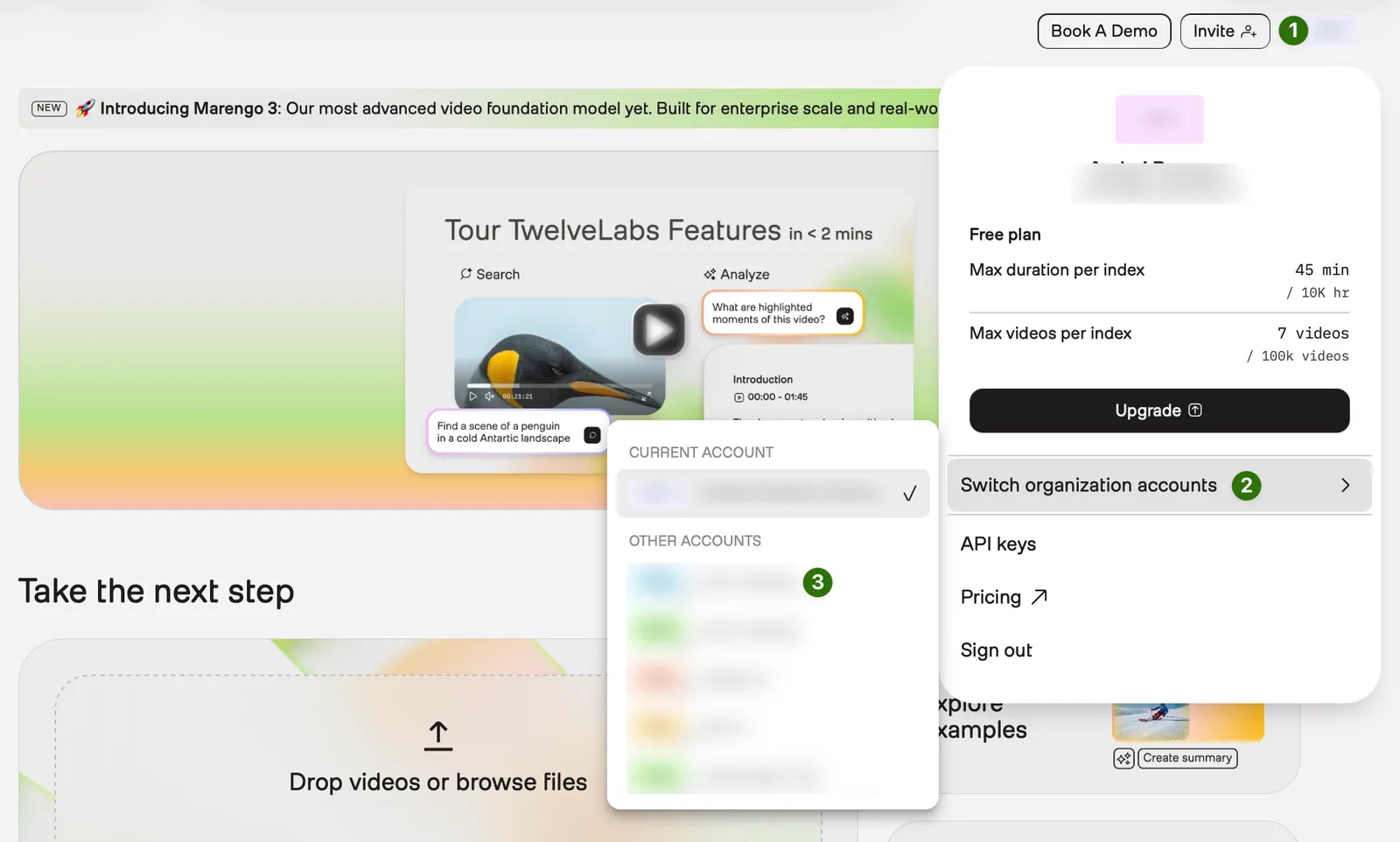
Your current account is displayed in the top-right corner of the screen. Personal accounts are marked with your initials, while organization accounts will show the initials of the respective organization.

To switch between your accounts:

1

From any page of the Playground, select your profile icon in the top-right corner.
2

Select Switch organization accounts in the dropdown menu.

3

Choose the account you want to use. A checkmark will appear next to your active account.

Create API keys

1

From the sidebar of any page on the Playground, choose Settings > API Keys.

2

Select the Create API Key button.

3

Enter a name and set the expiration period. The default is 12 months.

4

Select the Create button.

5

Select the Copy icon next to your key to copy it to your clipboard.

Work with resources

All shared resources (indexes, videos, and S3 integrations) work exactly like those in your personal account but are automatically shared with all organization members. You can create, manage, and use these resources using the same workflows you’re familiar with from your personal account.