

Visualize embeddings
Use the Playground to analyze semantic relationships between your video content and text queries. The visualization displays up to 500 clips from your selected index as interactive data points in a two-dimensional space. Dots that cluster together indicate content with similar characteristics. Each dot in the visualization has a distinct color:
- Light green: Represents video clips.
- Dark green: Indicates the currently selected video clip.
- Orange: Represents your text query
When you enter a text query, its position relative to video clips indicates semantic similarity - clips positioned closer to your query are more semantically similar to the text you entered.
User interface
The following image shows the user interface and the key elements you can use to interact with the visualization:
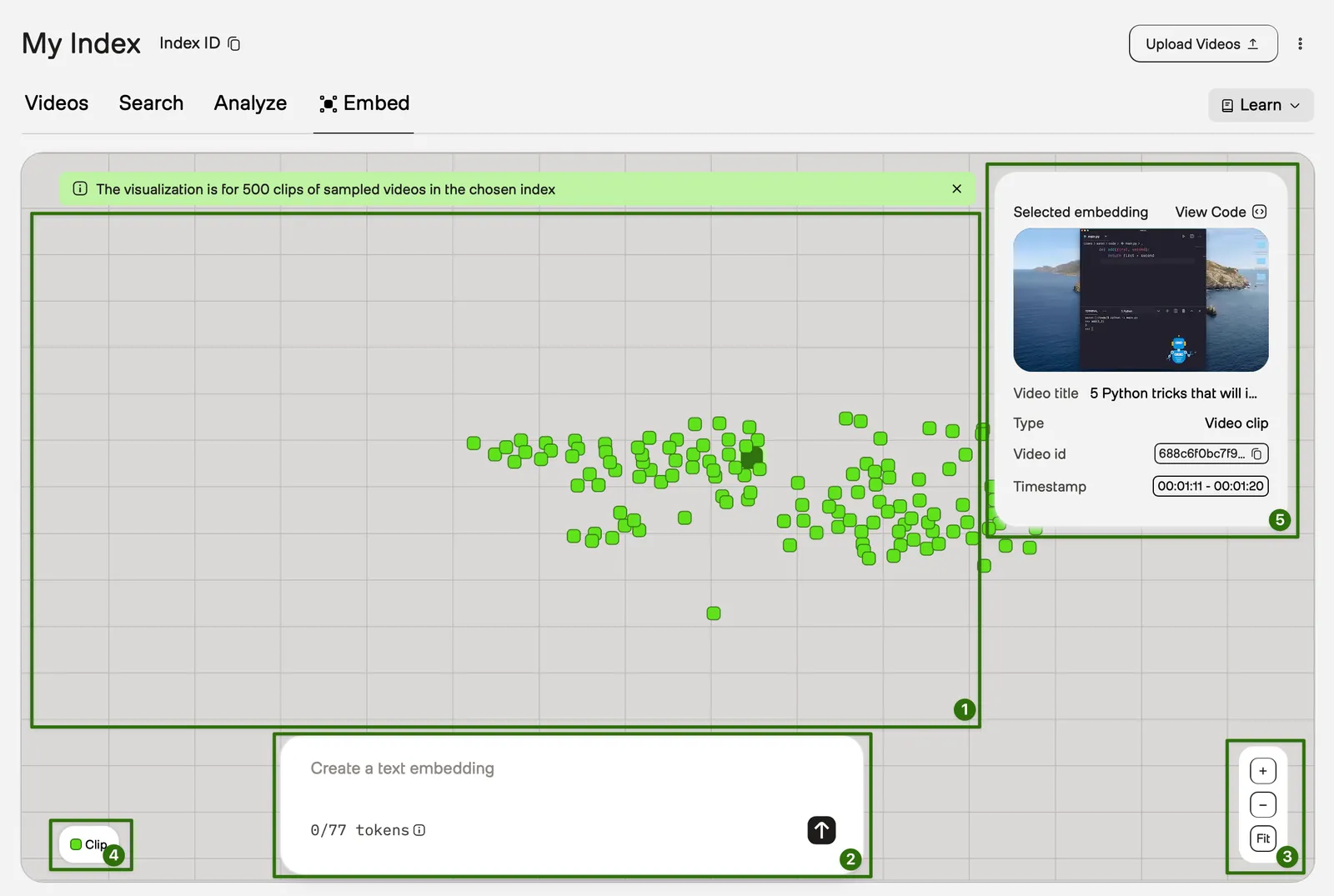
- Visualization area: Displays dots representing video clips and the embedding for your text query.
- Create a text embedding: Use this text field to enter your text query. Note that your text cannot exceed 77 tokens. The token count is displayed at the bottom.
- View controls: Use these buttons to adjust the visualization:
- Zoom in
- Zoom out
- Fit: Reset the view to show all points
- Legend: Shows what the different colors represent.
- Selected embedding: Shows detailed information about the selected embedding. including a video player.
Typical workflow
Follow the steps below to explore semantic relationships in your video content:
- From the Indexes page, select an index.
- Choose the Embed tab
- Enter a text query to find relevant video segments.
- Explore relationships by:
- Observing clusters of similar content
- Adjusting the view to focus on specific areas using the buttons in the View controls area or your mouse.
- Selecting dots to preview video segments
- View the code to implement similar functionality in your application.