

Upload and manage assets
An asset is a video, audio, or image file you upload to the platform. The Assets page is where you upload, browse, preview, and delete your files.
User interface
The following image shows the user interface and the key elements:
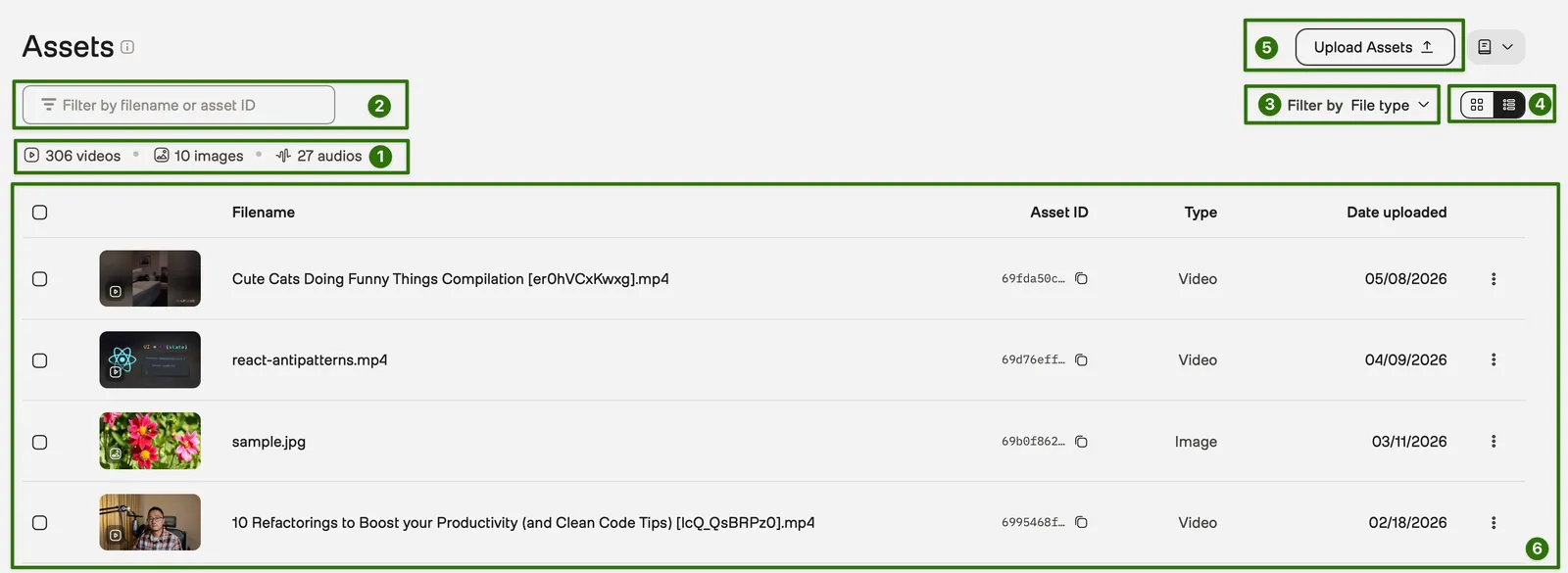
- Summary bar: Shows the total number of videos, images, and audio files.
- Filter: Use this input box to filter assets by filename or asset ID.
- Filter by file type: Use this dropdown to show only videos, images, or audio files.
- View options: Use these buttons to switch between grid view and list view.
- Upload Assets: Opens a dialog where you can upload new files.
- Asset list: Displays your assets. Each row shows a thumbnail, filename, asset ID, file type, date uploaded, and a three-dot menu.
Upload assets
- Select the Upload Assets button.
- In the Upload assets dialog, drag and drop your files or click to choose files from your computer.
- (Optional) Review the list of files to upload. To remove a file, select the X icon on its thumbnail.
- Select the Upload button.
- Monitor the upload progress in the banner at the top-right corner of the page.
Add a video to an index
To use a video asset for search, you must add it to an index. Analysis, segmentation, and embeddings do not require indexing.
Add a single video:
- Find the video you want to index.
- Select the three-dot menu at the end of the row.
- Select Index video.
- In the dialog, select an index from the dropdown.
- Select the Add to Index button.
Add multiple videos:
- Find and select the videos you want to index.
- Select the Index Videos button.
- In the dialog, select an index from the dropdown.
- Select the Add to Index button.
Preview an asset
Select an asset in the list to open the detail panel. The panel shows a media player and the associated metadata.
Delete assets
Note
This action cannot be undone.
Delete a single asset:
- Find the asset you want to delete.
- Select the three-dot menu at the end of the row.
- Select Delete.
Delete multiple assets:
- Find and select the assets you want to delete.
- Select the Delete button.
- Select Delete.