

Start with the Jockey MCP
Use Jockey to talk to your videos. The Jockey MCP connects Jockey to Claude or ChatGPT. Once it is connected, add your videos and ask for what you need, like “find every moment where someone enters a room.” Jockey answers with the matching clips and timestamps.
4 steps, no code
- 1ConnectAdd it to your assistant
- 2CheckConfirm it works
- 3Add videosUpload or paste a link
- 4AskSearch in plain English
Everything happens in Claude or ChatGPT and your browser.
Where Jockey works
- No code: this page covers it.
- In your own app: use the Agents API to create knowledge stores and ask Jockey questions from code. See the Agents quickstart.
Before you start
- Claude or ChatGPT. You can use the desktop app or the web version.
- A free TwelveLabs account. You can create one when you connect Jockey in step 1.
- Videos to search. You can upload files, or paste a public link such as a YouTube URL.
What you will have at the end
A conversation in Claude or ChatGPT where you can search your own videos, ask for summaries, and jump to the exact moments you described.
Connect Jockey to Claude or ChatGPT
Choose the assistant you use.
Claude
ChatGPT
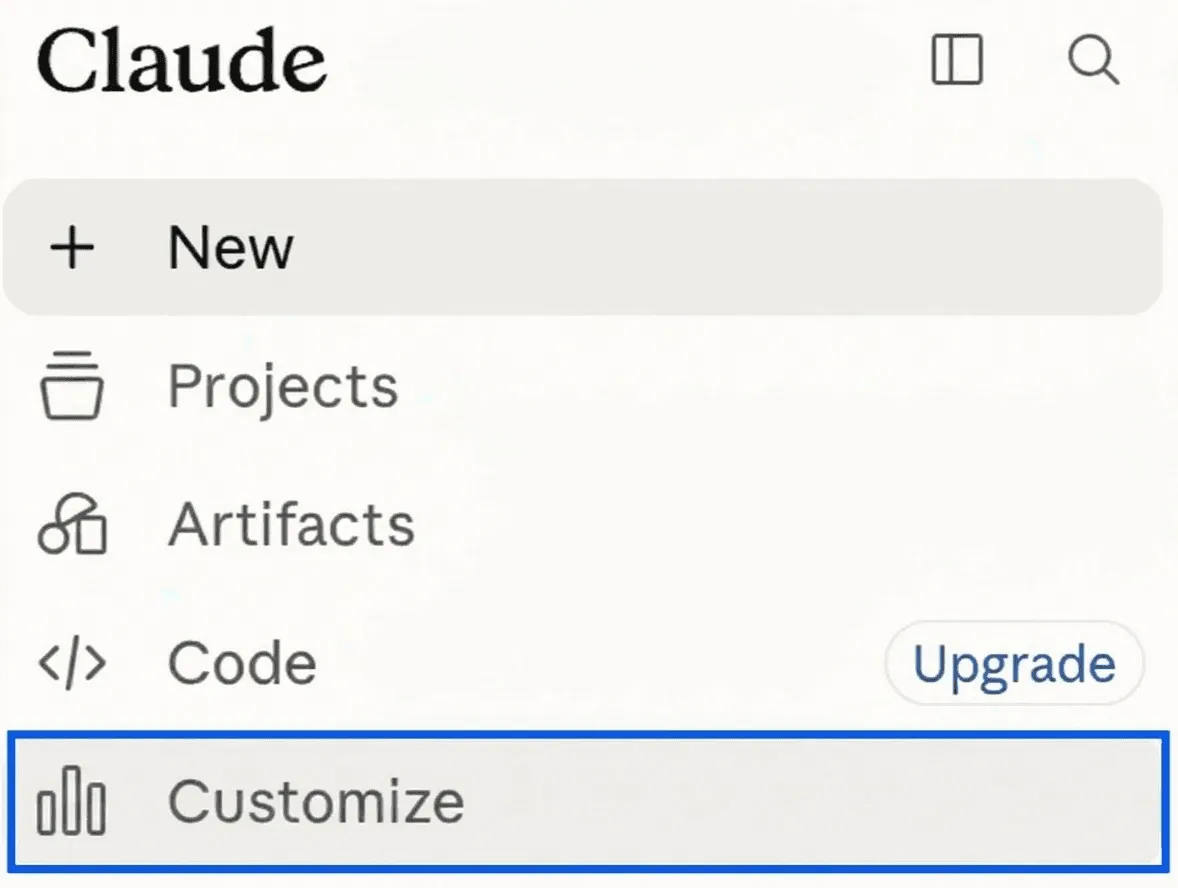
In Claude, open the Customize menu item in the left sidebar.
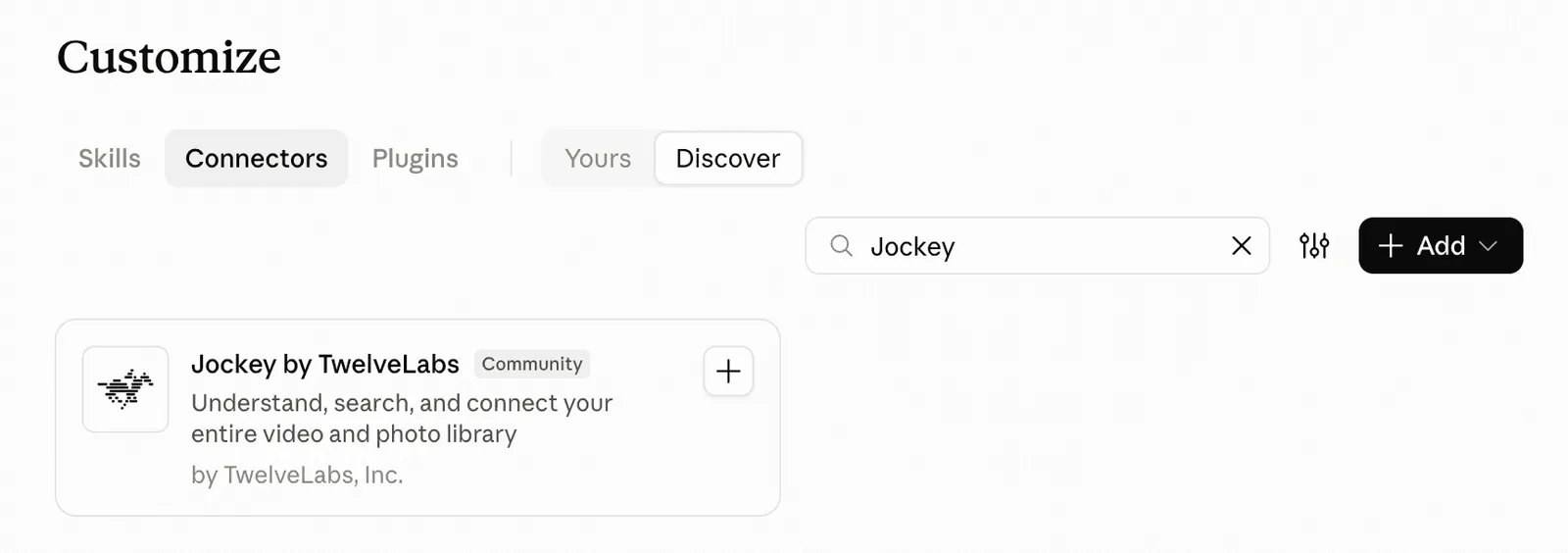
Open the Connectors tab, search for Jockey, and select the + button on Jockey by TwelveLabs.
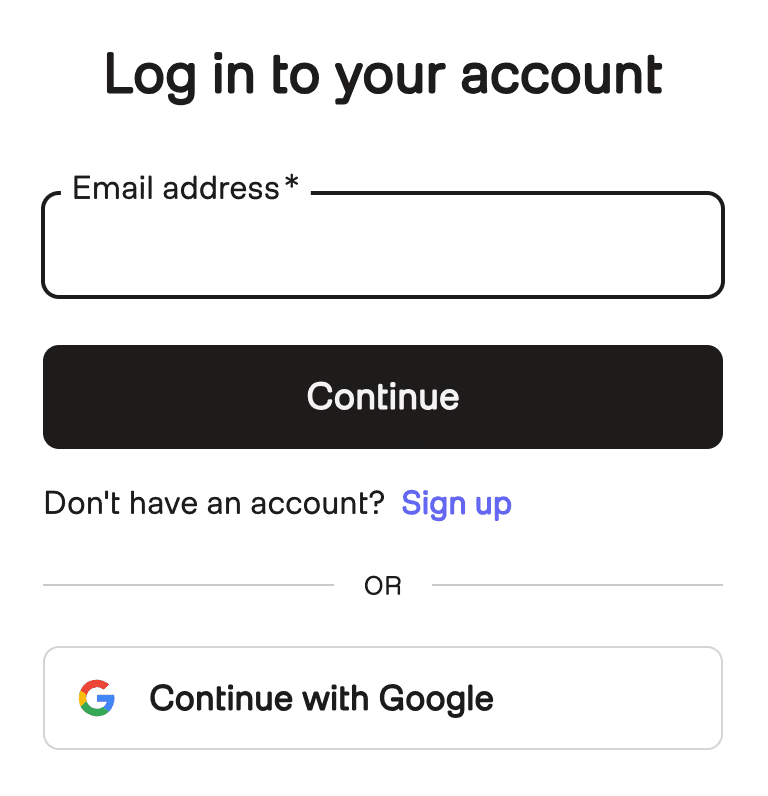
When prompted, log in to your TwelveLabs account, or select Sign up to create a free one.
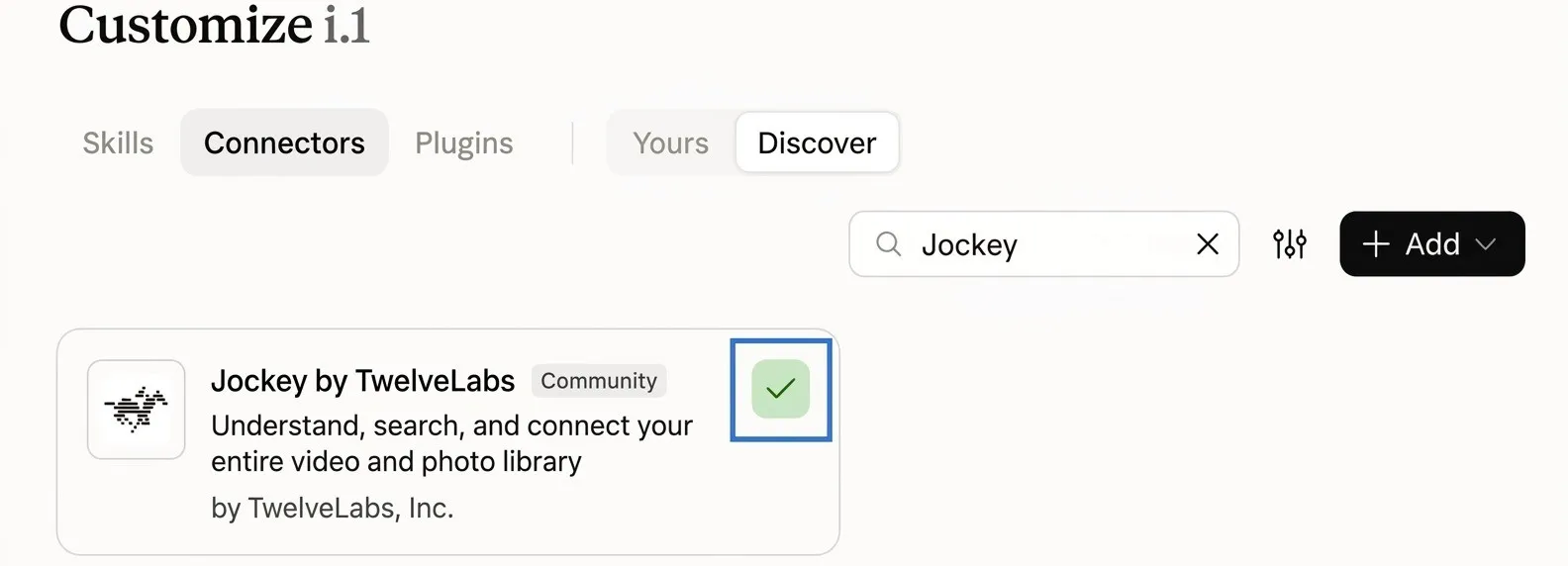
A green check mark on the Jockey connector means you are connected.
Check that it works
Start a new chat in Claude or ChatGPT and ask:
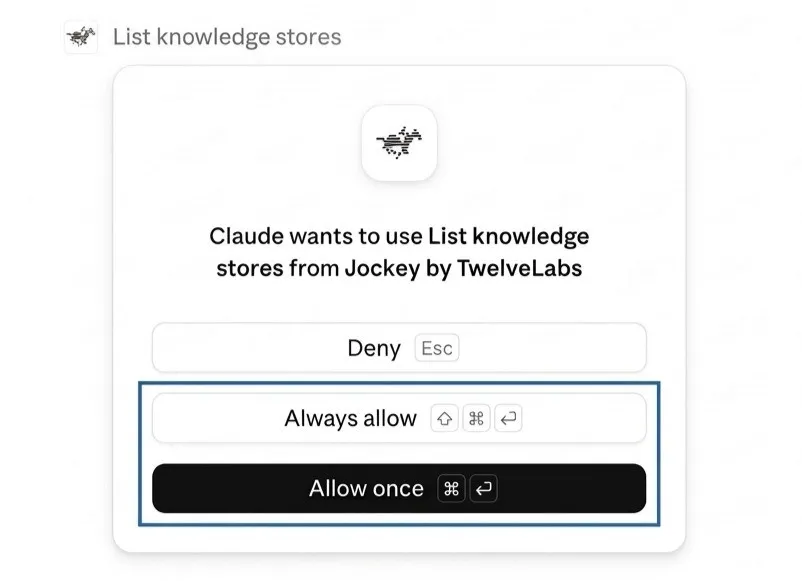
Your assistant describes what Jockey can do. The first time it uses a Jockey tool, it asks for permission. Select the Allow once button, or the Always allow button if you do not want to be asked again. This is how it looks in Claude:
Add your videos
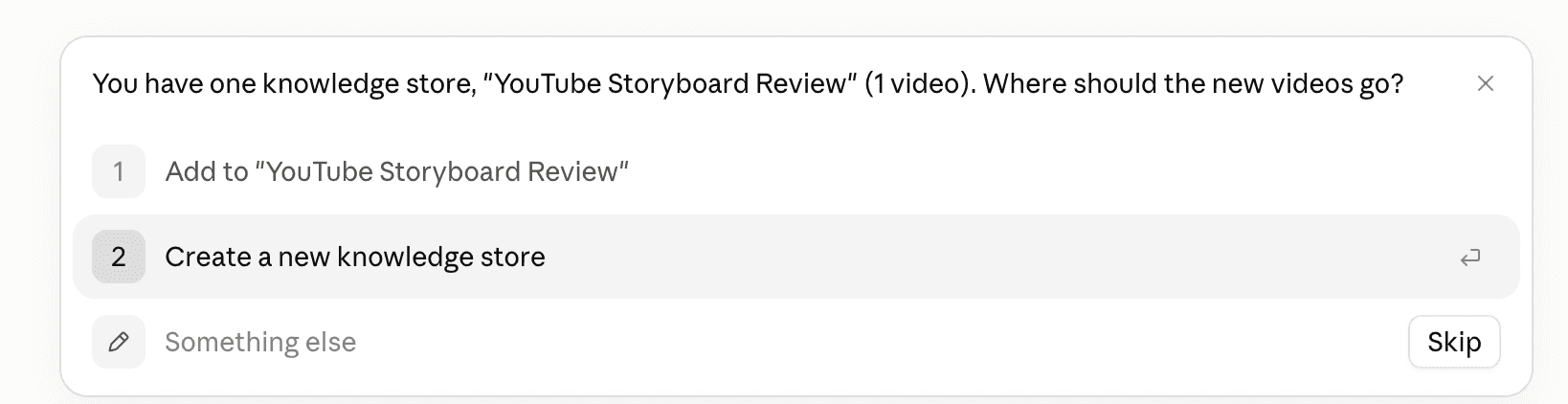
Ask your assistant to add videos, for example: “I want to add videos to Jockey.” It asks where they should go. Jockey keeps your videos in a knowledge store, a collection it can search together. Choose an existing one or create a new one.
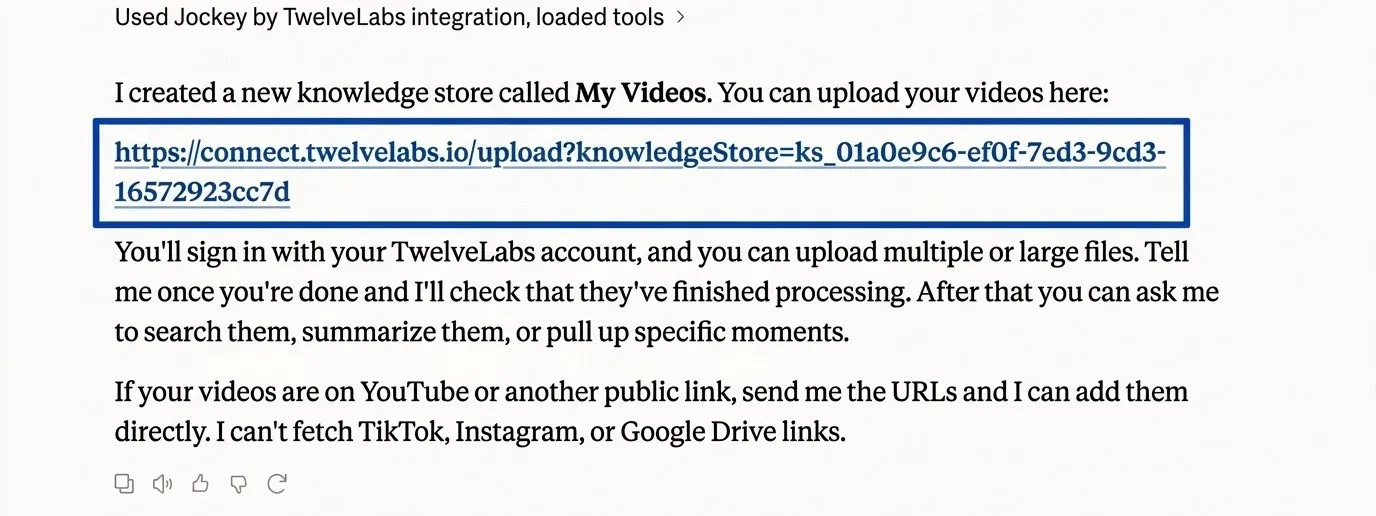
Your assistant replies with an upload link. These screenshots show Claude.
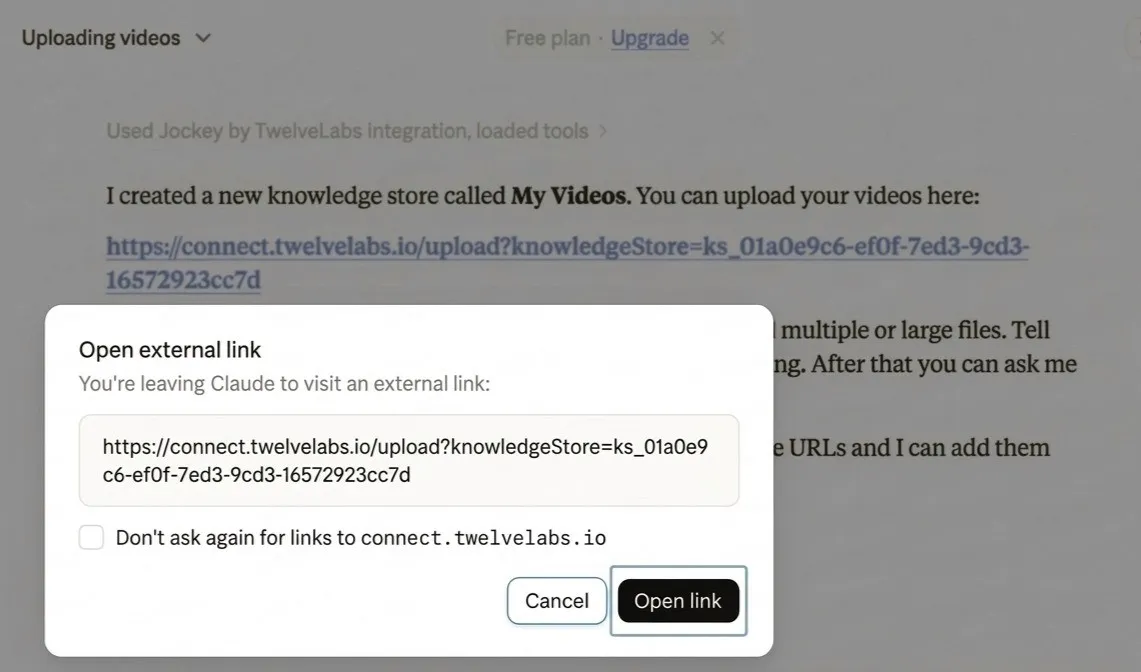
Select the link, then confirm if your assistant asks to open it.
This upload page is part of Connect, where you add videos and images to your knowledge stores. Choose files from your computer or from Google Drive. Videos can be up to 5 GB and images up to 32 MB.
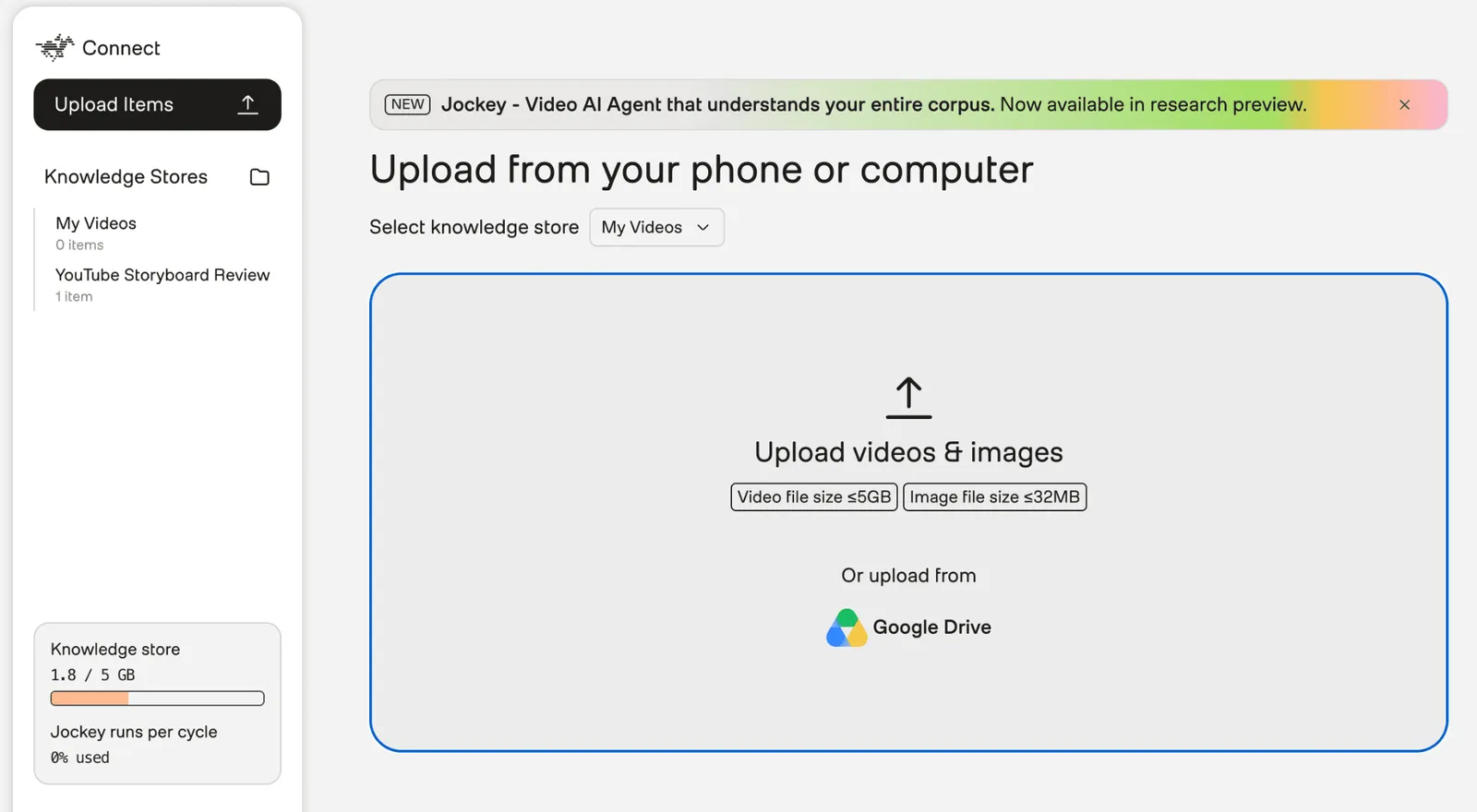
You can also paste a public video link, such as a YouTube URL, into the chat and ask your assistant to add it. Jockey cannot fetch TikTok, Instagram, or Google Drive links directly. Use the upload page for those files.
When the upload finishes, go back to your assistant and say you are done. Jockey checks that your videos are ready before you search.
What to try next
Once your videos are in, try a recipe. Recipes are ready-made tasks for common jobs, and several suit creators and small teams.
See all Jockey recipes.
Manage your videos in Connect
Claude and ChatGPT only show the chat. They do not show what Jockey has stored for you. Connect does: you use it to check your videos, organize them, and see your usage and billing.
To use it:
Sign in
Go to connect.twelvelabs.io and sign in with the same TwelveLabs account you used to connect Jockey.
Open a knowledge store
Open a knowledge store to see the videos and images in it, and which ones are ready.
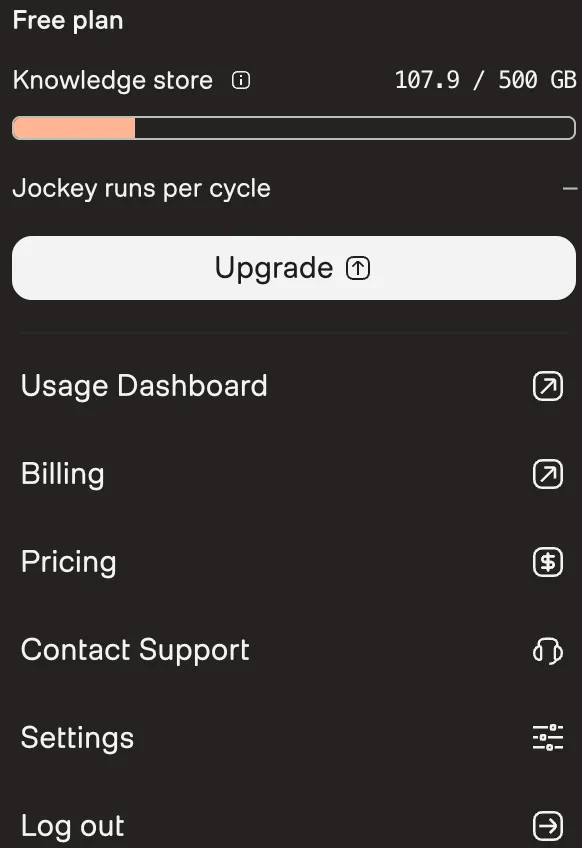
Developers can also create and manage collections through the API. See Create an item collection.
If something looks off
- Jockey does not see my new videos. Longer videos take longer to become ready. Ask your assistant whether your videos are ready.
- The connector does not appear. Update the app, then search for Jockey by TwelveLabs in Claude under Customize, Connectors, or in ChatGPT under Plugins.
- Authorization is stuck. Sign out of your TwelveLabs account in your browser and try again.
- Your assistant cannot add a link. Jockey cannot fetch TikTok, Instagram, or Google Drive links directly. Use the upload page for those files.